

How to Use
MuffinBite relies on a predefined directory structure to manage templates, data files, campaigns, and attachments. The following section explains the purpose of each directory created during the initial setup.
MuffinBite generates 5 folders on the first run. (6th folder i.e. "Logs" is generated when we set debug to "True")
The directories below are created automatically and are required for normal operation.
- Attachments: Place all files you want to use as email attachments or embed inline in HTML templates in this folder.
- Campaigns: Stores all your campaigns. It is recommended not to make manual changes here.
- DataFiles: Store all your email records (CSV or Excel files) here for use in your outreach campaigns.
- EmailStatus: Contains the output files generated by MuffinBite, including records of successful and failed emails.
- Templates: Place all your HTML templates in this folder.
- Logs: Stores debug-level information in the
errors.logfile. This file is only created when debug mode is enabled.
The following steps demonstrate a complete workflow: preparing templates and data, creating a campaign, and sending both test and real emails.
This example uses two files placed in the Attachments directory: profile.jpg, and sailing_ship.pdf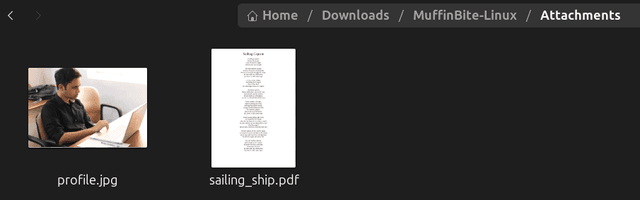 My email template (inside "Templates" folder with the name "test.html") looks like below after rendering in browser.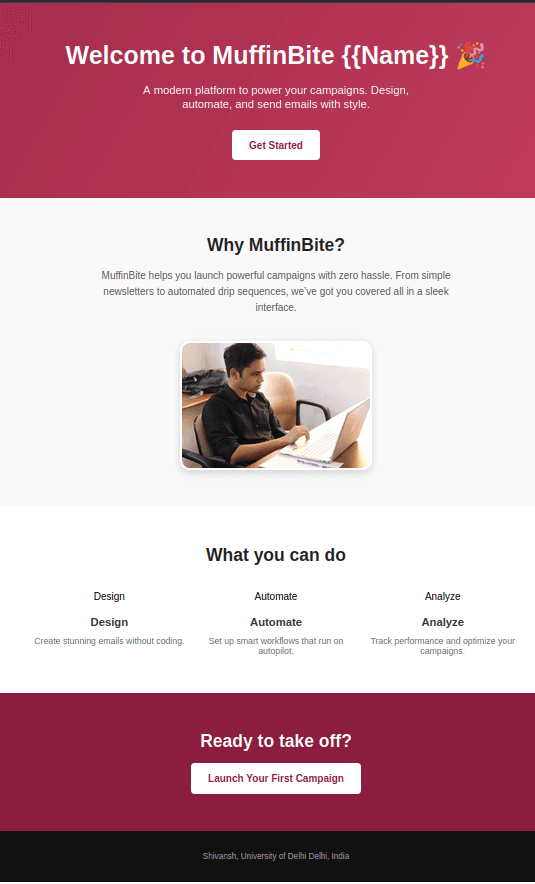
Below is the campaign that we will use:bite> camp --create
Enter name for the campaign: test
Enter subject line for the email: {{Name}}, welcome to MuffinBite.
Enter template name you want to use: test
Enter attachments, (separated by commas if more than one): sailing_ship.pdf
Enter CC emails, (separated by commas if more than one):
Enter BCC emails, (separated by commas if more than one):
bite>
The following command sends emails using test data associated with the selected campaign: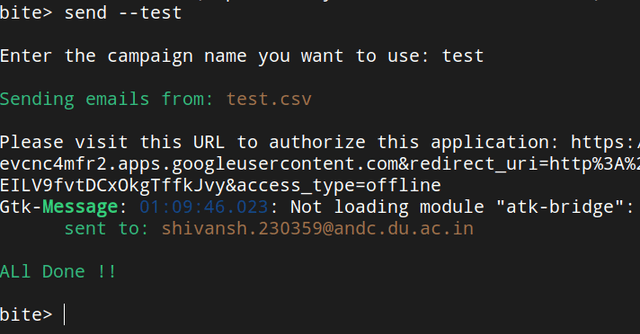 Also, you can see the message on the screen, "Please visit this URL to authorize this application".
When using the Gmail API for the first time, Google requires one-time authorization for the configured account.
A browser window will open automatically, just visit the site and allow your own application to send the emails on your behalf.
Note:
This is your own application with the name "muffinbite" that you created on your Google Cloud Console, so there's nothing
to worry about it. Just make sure that you keep your "credentials.json" file safe.
Below you can see that the email has reached the inbox, and {{Name}} has been replaced with actual name of the recipient.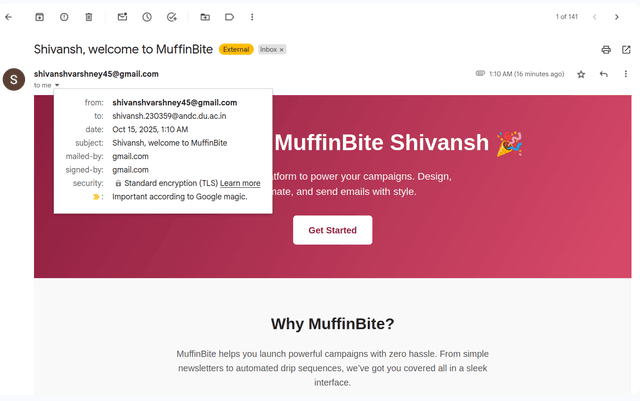
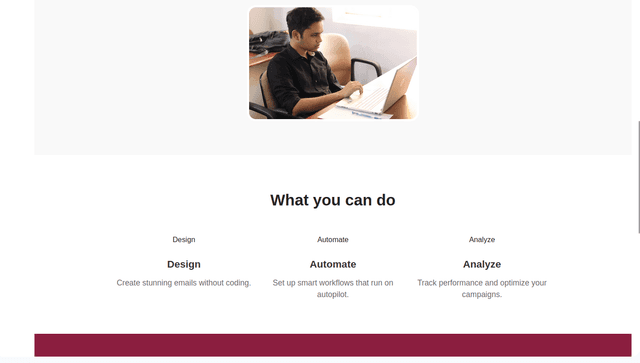
This example uses two files placed in the Attachments directory: profile.jpg, and sailing_ship.pdfMy email template (inside "Templates" folder with the name "test.html") looks like below after rendering in browser.
Below is the campaign that we will use:bite> camp --create
Enter name for the campaign: test
Enter subject line for the email: {{Name}}, welcome to MuffinBite.
Enter template name you want to use: test
Enter attachments, (separated by commas if more than one): sailing_ship.pdf
Enter CC emails, (separated by commas if more than one):
Enter BCC emails, (separated by commas if more than one):
bite>
The following command sends emails using test data associated with the selected campaign:Also, you can see the message on the screen, "Please visit this URL to authorize this application".
When using the Gmail API for the first time, Google requires one-time authorization for the configured account.
A browser window will open automatically, just visit the site and allow your own application to send the emails on your behalf.
Note:
This is your own application with the name "muffinbite" that you created on your Google Cloud Console, so there's nothing
to worry about it. Just make sure that you keep your "credentials.json" file safe.
Below you can see that the email has reached the inbox, and {{Name}} has been replaced with actual name of the recipient.